
Brasil Papaya: A Music Toolkit App for iOS and Android
Tuner, metronome, sound meter and more, celebrating 30 years of Brasil Papaya
Table of Contents
Brasil Papaya is a band I’ve been close to for a long time, and last year they celebrated 30 years of music. To mark the occasion, they asked me to build a complete music toolkit app, available for free on both iOS and Android.
The first version was actually built with Expo and TypeScript, the idea being to share a single codebase across platforms. It worked fine for the UI, but when it came to real-time audio signal processing, the JavaScript bridge was a bottleneck. Pitch detection needs low-latency access to the microphone buffer, and going through React Native’s bridge added enough delay and overhead to make the tuner feel sluggish and unreliable. I scrapped it and went fully native.
The iOS version is now built in Swift with SwiftUI, and the Android version in Kotlin, no cross-platform frameworks. In this post I want to dig into the technical side of things: how pitch detection actually works, the trade-offs I made, and the bugs that made me question my life choices.
The Audio Stack #
The iOS app uses AudioKit, an open-source framework that wraps Apple’s AVAudioEngine. The signal chain is straightforward:
Microphone → Fader → Mixer → Fader (gain=0) → Output
                ↓
             PitchTap (frequency + amplitude callback)
The last Fader has its gain set to zero so you don’t get feedback, but it keeps the engine running so the PitchTap can keep reading from the mic. Both the tuner and the sound meter share this single PitchTap, which turned out to be a bigger problem than expected (more on that later).
Pitch Detection #
Why Not FFT? #
The usual approach to pitch detection is FFT (Fast Fourier Transform), which gives you a spectrum of frequencies. The problem is resolution: at 44.1 kHz with a 4096-sample buffer, you get about 10.8 Hz resolution. That’s fine for high notes, but for a bass guitar’s low E (41.2 Hz), you could be off by a quarter of a semitone.
Instead, AudioKit’s PitchTap uses autocorrelation: slide a copy of the signal over itself and find the offset where it matches best. That offset gives you the fundamental period, and inverting it gives the frequency. It handles harmonics better than FFT because even when overtones are louder than the fundamental (common with real instruments), the fundamental period is still there.
From Frequency to “You’re In Tune” #
Once you have a frequency, you need to know how far off it is from the target note. That’s measured in cents (100 cents = one semitone):
cents = 1200 × log₂(frequency / target_frequency)
Zero means perfect. Positive means sharp, negative means flat. The tuning reference defaults to A440 but is adjustable.
Smoothing the Signal #
Raw pitch data is noisy, even on a steady note. Three things keep the display readable:
- Amplitude gating - ignore anything below a threshold to filter out background noise
- Exponential smoothing - blend each new reading with the previous one (factor of 0.15) for a smooth but responsive display
- Note hysteresis - require 3 consecutive stable readings before changing the displayed note name, so it doesn’t flicker between two semitones
When you select a specific string, the app also applies a frequency window filter around the target, which eliminates octave errors where the detector latches onto a harmonic instead of the fundamental.
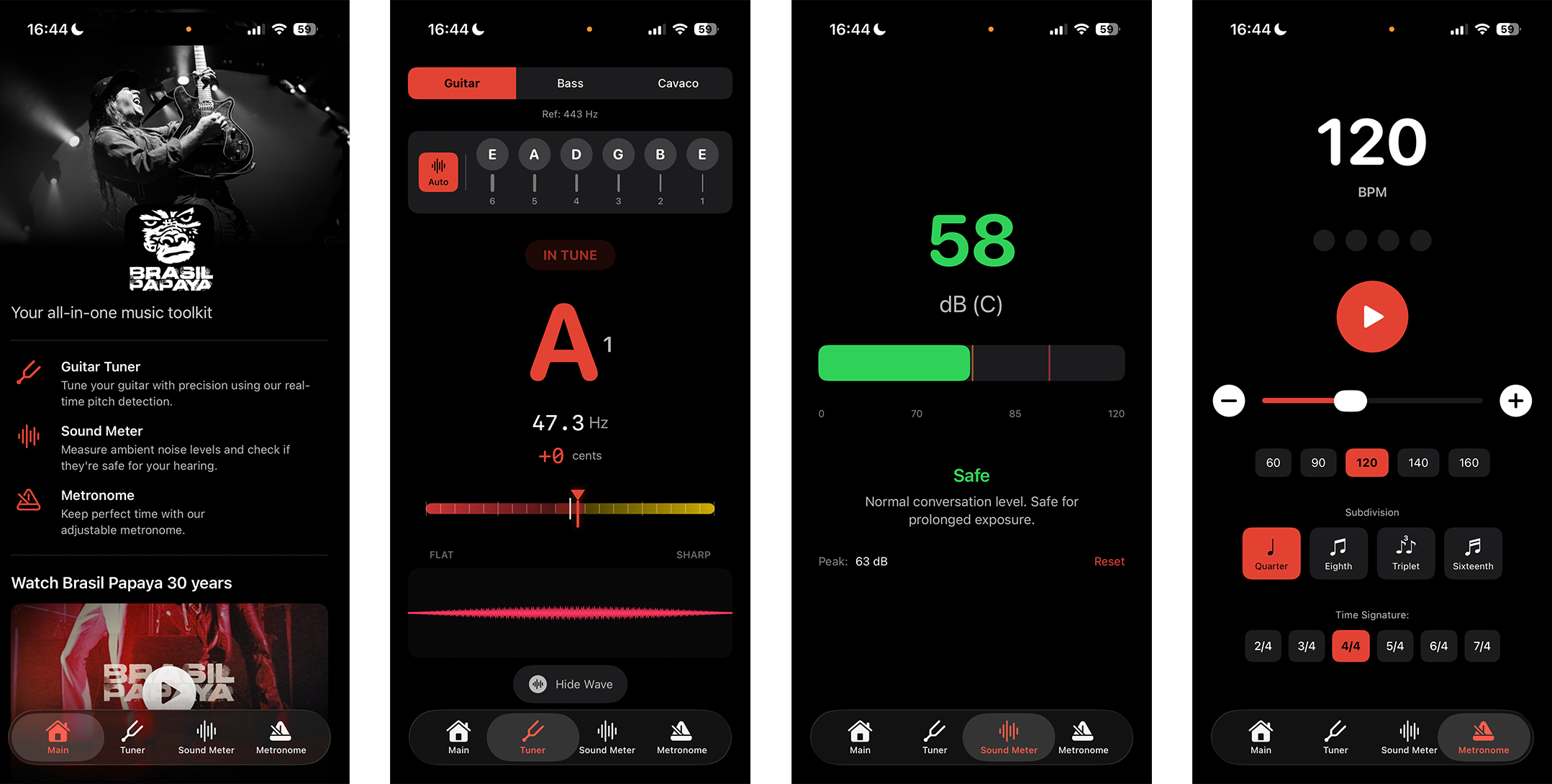
The app supports Guitar (6 strings), Bass (4 strings), and Cavaco (4 strings).
The Metronome #
I used Timer.scheduledTimer for timing. It has some jitter (~1-16ms), but for a practice tool that’s below the threshold of perception. A studio-grade metronome would use AVAudioEngine with pre-scheduled buffers for sample-accurate timing, but the simplicity trade-off was worth it here.
The click sounds are generated procedurally as sine wave tones (no bundled audio files):
| Sound | Frequency | Duration |
|---|---|---|
| Accent (beat 1) | 1500 Hz | 50ms |
| Regular beat | 1000 Hz | 50ms |
| Subdivision | 800 Hz | 35ms |
Supports time signatures from 2/4 to 7/4, with quarter, eighth, triplet, and sixteenth note subdivisions.
Sound Meter #
The sound meter converts microphone amplitude to approximate dB SPL:
dBSPL = 20 × log₁₀(amplitude) + calibrationOffset
Phone microphones aren’t calibrated instruments, so the offset was determined by comparing against a reference meter. It’s an approximation, not lab-grade, but good enough for a band checking venue levels:
- < 70 dB: Safe
- 70-85 dB: Caution, prolonged exposure may cause damage
- > 85 dB: Hearing protection recommended
Waveform Visualizer #
Three overlapping sine waves with 120° phase separation, rendered using SwiftUI’s Shape protocol. Amplitude responds to mic input, wavelength maps to detected frequency. A parabolic envelope fades the edges smoothly, and a 2-pixel stride keeps rendering fast on older devices.
The Bug That Nearly Broke Everything #
The tuner and sound meter share a single PitchTap. When switching tabs, the old view stops the tap and the new view starts it. Simple, except SwiftUI doesn’t guarantee the order of onDisappear and onAppear. Sometimes:
- New view appears and starts PitchTap
- Old view disappears and stops PitchTap ← kills the new view’s tap
Audio freezes. No data. Silent death.
The fix was an ownership system: each caller registers as the owner when starting the tap, and only the current owner can stop it:
| |
On top of that, a health check timer runs every second: if the tap isn’t running, the engine died, or no data has arrived in 1.5 seconds, it triggers a full pipeline restart. This catches edge cases like Bluetooth disconnections and phone call interruptions.
Architecture #
The app uses MVVM with SwiftUI:
- Views: declarative SwiftUI
- ViewModels:
ObservableObjectwith@Publishedproperties - AudioController: singleton
EnvironmentObjectshared across all features - DataController: persistence and theming
Data flows reactively via Combine:
AudioController.$pitchTapData → TunerViewModel
DataController.$theme → All Views
DataController.$tuningReference → TunerViewModel
What I’d Do Differently #
- Metronome timing: move to
AVAudioEnginepre-scheduled buffers for sample-accurate timing at high tempos - Sound meter: per-device calibration profiles for more trustworthy dB readings
- Pitch detection: a custom YIN or pYIN implementation for more control over the accuracy/latency trade-off
Screenshots #
30 Years of Brasil Papaya #
Download #
The app is free, grab it on your favorite store:
Available in Portuguese, English, and Spanish.